
AlgoTrade Connect User Guide
Guide for version 1.38For MetaTrader 4 and MetaTrader 5 · Current EA version 1.44 · Guide updated 27 October 2026
AlgoTrade Connect is a small EA. Its trading tools (Try and Auto) are locked by default and work only with a trading key from AlgoTrade. For a free research demo key, click Get key on a demo account. Real keys are unavailable while Try and Auto are in research. It sends the results of your MT4 / MT5 account to algotrade.ltd, where you can keep them private or show them on the Source list.
1. What AlgoTrade Connect does
- Trading tools locked by default. Try and Auto on a gold chart (3 orders of 0.01 with TP and SL; read section 5) work only with a trading key from AlgoTrade, a trading login (not an investor password) and Algo Trading on. Without a key it only reads and sends. For a free research demo key, click Get key on a demo account. Real keys are unavailable while Try and Auto are in research.
- Once, it sends the full closed history of the account. After that it sends the balance, equity, open trades and new closed trades: every minute, every hour, once a day, or only when you press Send now.
- You do not give anyone a password. AlgoTrade Connect runs inside your own MetaTrader. It also works when MetaTrader is logged in with an investor (read-only) password.
- Works with any broker: demo, cent or real, MT4 and MT5. It reports the whole account, whatever EAs or manual trades are on it.
- New accounts start private. Nothing is public until you switch the account to Public in Settings.
To use AlgoTrade Connect you need a free AlgoTrade account and must accept the User Agreement. Register at algotrade.ltd/account.
2. Install: two ways
First log in at algotrade.ltd/account. All downloads are there. Choose one way:
Way A – Installer (easiest)
- Close MetaTrader.
- Download and run
AlgoTrade_Connect_Setup.exe. - If Windows says "Windows protected your PC", click More info > Run anyway.
- The installer finds every MT4 and MT5 on your computer. Tick the ones you want and click Install.
- Open MetaTrader again. AlgoTrade Connect is in the Navigator under Expert Advisors.
Way B – By hand
- Download
AlgoTrade Connect.ex5(MT5) orAlgoTrade Connect.ex4(MT4). - In MetaTrader click File > Open Data Folder.
- Open
MQL5 > Experts(MT5) orMQL4 > Experts(MT4) and copy the file there. - Back in MetaTrader, right-click Expert Advisors in the Navigator and click Refresh.
The file name is always AlgoTrade Connect. A new copy simply replaces the old one, so you never have several versions on your computer.
3. Put it on a chart: "Allow DLL imports" and the inputs
- Open any one chart of the account (any symbol, any timeframe). One chart per account is enough.
- Drag AlgoTrade Connect from the Navigator onto the chart. A window opens.
- Allow DLL imports: tick this box. MT4: tab Common. MT5: tab Dependencies (or Common, depending on the MT5 version).
- Tab Inputs: if you installed with Setup from My desk, leave Login and Password empty; the EA signs in automatically. Otherwise, fill them in. Frequency can stay as it is.
- Click OK. Make sure Algo Trading (MT4: AutoTrading) is on in the toolbar.
| Input | What it does | Choices / default | Example |
|---|---|---|---|
| Login (username or email) | Fill in unless you installed with Setup from My desk. Your algotrade.ltd username or email. Not your broker login. | text | goldtrader or [email protected] |
| Your login password in algotrade.ltd | Fill in unless you installed with Setup from My desk. The password of your AlgoTrade account. Not your broker password. | text | your AlgoTrade password |
| Frequency | How often it sends. Manual: it sends once when you attach it, then only when you press Send now on the chart. Longer gaps mean the floating drawdown is measured less often. | Every 1 minute / Every 5 minutes / Every 30 minutes / Every 60 minutes / Once a day / Manual Default: Every 1 minute | Every 1 minute |
| Show AT Insight on the chart | Off: the chart stays as it is; a small button opens AT Insight. | true / false Default: true | true |
| Trading key | Unlocks Try and Auto on this MT account. Given by AlgoTrade for one account number. If empty, click Get key on the chart. | text Default: empty | ATK-XXXX-XXXX-XXXX |
| Phone notifications | MetaTrader push to your phone (set your MetaQuotes ID in Tools > Options > Notifications). | Off / Auto trades only / All Try trades / New bars and all Try trades Default: Off | Auto trades only |
https://algotrade.ltd in Tools > Options > Expert Advisors > Allow WebRequest for listed URL.To open the EA window again later: right-click the chart > Expert Advisors > Properties, or press F7.
Username: you can change your username in Settings at most once every 30 days. If you change it, type the new username (or your email) in Login, or the EA stops with "wrong login or password".
4. Settings on the website
Everything except login and frequency is set on the website: Settings > tab MT accounts. Each change saves at once, with no Save button. The EA picks it up at its next update and shows it on the chart panel.
| Setting | What it does | Choices / default |
|---|---|---|
| Name | The name people see, for example your EA's name. A new account is named by platform and login, for example MT5 12345678, until you rename it. | text |
| Public | Show the account on the public Source list, or keep it private. A private account is still recorded and you still see it. | on / off Default: off (private) |
| Portfolio | Put accounts together in one portfolio. Pick one from the list, or "+ New portfolio…". See section 7. | Uncategorized / your portfolios Default: Uncategorized |
| Count by | Each order: every closed order is one result. Each basket (grid, DCA): a whole group of orders, from the first open until all are closed, is one result. | Each order / Each basket Default: Each order |
| Reset data | Only if the website data looks wrong. It asks you to confirm, deletes this account's data on the website, and the EA uploads the history again from MetaTrader. It takes a few minutes. | button |
5. Check it works: AT Insight on the chart
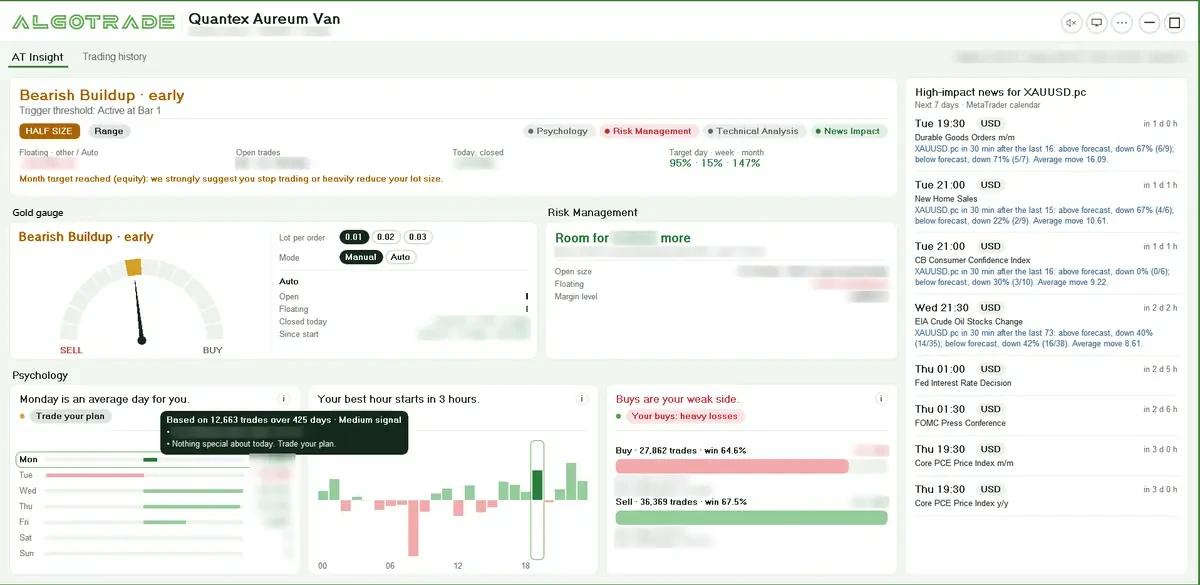
After you click OK the chart shows AT Insight for this account. Candles and indicators on this chart are hidden; the chart colours come back when you remove the EA (removed indicators do not). On a fast computer the first start shows the AlgoTrade logo in gold grains for about 3 seconds. On a busy computer the grains and the music turn off by themselves. Lite (⋯ menu) only sends the account to algotrade.ltd: no analysis, a small card in the corner, the chart stays as it is, lightest on the computer. The card also sets how often it sends.
| Part | What it shows |
|---|---|
| Header | Account name, number and broker. A status appears only when something is wrong (connecting, retrying, stopped; read section 9). |
| AT Insight tab | The Overall box on top. On gold, when a gauge bar lights up, the trade line reads "Buy side · bar 2 · from A – B" with TP1, TP2 and TP3 (20, 30 and 40 pips), how often each was reached first in past data, and one SL; prices follow the market live. Past data, you decide. The line shows only when the time has an edge: no high-impact news from 30 minutes before to 30 minutes after (MT5), no holidays, not the first or last 2 days of the month, and on Tuesday afternoon (Hanoi time) sell only. Try (with a trading key) sends 3 orders of 0.01 with that SL and the three TPs, comment "ATI <version> B<bar> M TP1/TP2/TP3"; after TP1 the SL of the other two goes to break-even, after TP2 the last one goes to TP1. One Try per bar. The gold gauge: top = no signal, right = buy, left = sell; 3 amber steps while the setup builds (no trade), then one green / red step per Try bar. Hover over a gauge step to see its odds (TP1, TP2, TP3) and past case count. Next to it (with a trading key): lot size per order with − and + up to your key limit, Close all (two clicks; closes only Try orders), Manual or Auto (opens the Try of each new bar by itself, same rules, comment "… A …"), and the Auto summary: open, floating, closed today and since start. Auto pauses while the day target is reached on equity. Under the line: BUY / SELL SIDE, HALF SIZE, WAIT or NO TRADE, the market state and 4 chips (Psychology, Risk Management, Technical Analysis, News Impact; hover for what each colour means), your floating (other trades / Auto), today's closed result and the targets for the day, week and month on equity (closed + floating). Once a target is reached it says so and suggests to stop or heavily reduce the lot size. Then the gold gauge and Risk Management (the most lots that keep a bad day under 20% drawdown, and how much room is left); then Psychology: your weekdays (Avg / day or Total), hours and sides (with swap and commission); high-impact news (MT5 only), with the next 24 hours framed in red on the hour chart and in the list. Hover a chip or an (i) for the details. |
| Trading history tab | AT Score, the gain chart and calendar, and the analysis modules of the website. Click Arrange to drag and resize the modules on the website; the chart follows within 2 minutes. The mouse wheel scrolls. |
| Screen saver icon | Start the screen saver now, or after 5, 15 or 30 minutes. A click or a key ends it. |
| ⋯ menu | Check for updates, Full or Lite, your account settings and your account page on the website. |
| Minimize | Shows the normal chart. The Show AT Insight button brings AT Insight back. |
| Maximize | Full chart; also closes Toolbox, Market Watch and Navigator if they are open (needs "Allow DLL imports"). Click again, or Minimize, to bring them back. |
You can also open the Experts tab at the bottom of MetaTrader: you should see AlgoTrade Connect: connected, then full history uploaded. The account appears in Settings within about a minute.
6. Source list: AT Score and Portfolio view
AT Score
A research score for one account, demo or real. It looks at skill, risk (including the deepest drawdown), how bad the worst days are and how steady the results are. A short record is marked calibrating for the first 30 days.
Portfolio view
Portfolios of 2 or more accounts of the same kind: all real, or all cent (never mixed, no demo). It looks at how the whole portfolio makes money over time: yearly return on its capital, how many months end in profit, and how long the record is. Put accounts in one portfolio in Settings; there is no other switch.
Scores are research data, not advice or a recommendation.
7. Several accounts and portfolios
- Several accounts: put AlgoTrade Connect on one chart in each account, all with the same login and password. Every account shows in Settings.
- One account = one EA. If two computers report the same account (for example a cloud PC and your PC), they write to the same record. Run it in one place only.
- Portfolio: accounts in the same portfolio are shown as one row with the results of all accounts together. In Settings, accounts are grouped by portfolio; new accounts start in Uncategorized.
- Private accounts in a portfolio still count in the portfolio's results. Their names and numbers stay hidden; the row says how many linked accounts are private. Tick Public portfolio to show the portfolio row.
- One account belongs to one portfolio at a time, so no result is counted twice.
HEDGE-1, and tick Public portfolio. The Source list shows one row, HEDGE-1.8. Update, move to a new computer, stop
- Each copy works for about 6 months, or until the website stops accepting old copies after a major update. The panel shows "Valid until". Download a new copy from your account and replace the file (installer or by hand).
- Updates inside MetaTrader (from v1.24): when a new version is out, AT Insight asks: Update now, This weekend or Later. You can also use ⋯ > Check for updates. The EA installs a new file only when it carries AlgoTrade's digital signature, then restarts itself on the same chart. MT5 versions before 1.24 and MT4 versions before 1.28 must be replaced once by hand (download from your account).
- Updating from an older version (including older EA versions): remove the old EA from the chart, then add AlgoTrade Connect the same way. Your login, history and website settings stay the same.
- New computer or cloud PC: install there (section 2), attach to a chart with the same login, and remove it from the old computer.
- Stop: remove AlgoTrade Connect from the chart. To hide an account but keep recording it, switch Public off in Settings.
9. Messages and fixes
| Status on the panel | What to do |
|---|---|
tick 'Allow DLL imports' in the EA window (F7) | Press F7, tick Allow DLL imports (section 3), click OK. |
wrong login or password - fix inputs (F7) | Check Login and Password in the Inputs tab, no spaces. Changed your password or username on the website? Type the new one, or use your email. |
too many wrong logins - wait 1 hour | Wait one hour, fix the inputs, then press Send now. |
account closed | Your AlgoTrade account is closed. Write to [email protected]. |
this MT account belongs to another algotrade.ltd member | This MT account is already linked to another AlgoTrade account. Log in with that account, or write to us. |
this copy is too old / EXPIRED | Download a new copy from your account and replace the file. |
no connection: … | The line says why: name not found (DNS), cannot connect (firewall, antivirus or no internet), timed out, connection dropped, or certificate error (check the PC date and time). Old Windows may need TLS 1.2. It tries again by itself. |
History stays uploading... | Large histories take a few minutes. MT4: in the Account History tab, right-click > All History so the full record is loaded. |
| Nothing happens at all | Check that Algo Trading / AutoTrading is on and the chart shows the panel. Look at the Experts tab for lines starting with "AlgoTrade Connect". |
Something else wrong? Report a bug.
10. Questions
Can AlgoTrade Connect trade? Only with a trading key from AlgoTrade, and only the Try orders (3 × 0.01 with TP and SL), by your click or with Auto on. Without a key it only reads and sends. For a free research demo key, click Get key on a demo account. Real keys are unavailable while Try and Auto are in research.
Do I need a cloud PC? Only if you want updates 24/7. MetaTrader must stay open for the EA to send.
Does it work on the MetaTrader phone app? No. Phone apps cannot run EAs. Use Windows (your PC or a cloud PC).
Does it run in the Strategy Tester? No. It only works on a live chart.
Is it free? Yes.
11. Version history
| Version | Date | Changes |
|---|---|---|
| 1.38 | 27 Oct 2026 | MT4 and MT5. Day calendar shows the value in every cell. Lighter server use: the research basket is read only when it changes. Optional update. |
| 1.37 | 27 Oct 2026 | MT4 and MT5. Get key on the EA: no typing in F7 (demo keys are free, for research; keys for real accounts are not offered while Try and Auto are in research). Close all under Floating closes only the Try orders of this EA, with two clicks. Each step of the gauge shows its odds (TP1, TP2, TP3) and how many past cases they come from. Targets show the money next to the %. The Setup from My desk signs the EA in by itself: no web password in MetaTrader. |
| 1.36 | 27 Oct 2026 | MT4 and MT5. A sound when a bar is ready; the speaker button turns it on or off (no music any more, so the file is half the size). Lot per order with − and +, from 0.01 up to what your key allows. No screen saver. A short intro with the AlgoTrade logo. Demo keys work on demo accounts only. |
| 1.35 | 27 Oct 2026 | MT4 and MT5. Auto numbers (open, closed today, since start, TP1) are read from the orders themselves, so they stay after a restart of MetaTrader or on a new computer. After an update the desk comes back as it was: Lite stays Lite, Full stays Full, same tab, minimized or maximized as before, no logo. Lite is lighter: it only sends this account at the chosen frequency and checks for updates. Updates install by themselves. |
| 1.34 | 26 Oct 2026 | MT4 and MT5. Faster research signal: a new or closed trade is sent at once, and while a basket is near its next bar the desk checks it every 2 seconds (Auto or open desk). Trading keys come in two kinds: Pro trades 0.01 per order, Pro Max 0.01, 0.02 or 0.03. New, clearer icons; settings is a gear; maximize works like a normal window. The hour chart marks only today's news. Try and Auto need version 1.34 or newer. |
| 1.33 | 26 Oct 2026 | MT4 and MT5. Sharper text: the whole desk now uses Segoe UI, the Windows screen font. Smaller file. |
| 1.32 | 26 Oct 2026 | MT4 and MT5. Floating no longer counts broker credit or bonus. Targets for the day, week and month shown as fill bars; while one is reached, Auto is locked (Manual still works, but we strongly suggest you stop). Open trades shows the net buy or sell lots. "Recent closed" in Trading history, as baskets or single trades, like the website. Lite is lighter: a small card, the chart stays as it is, sending every 1, 5 or 30 minutes, 1 hour, 24 hours or by hand. Try orders are found again on a new computer. Faster fixes: AlgoTrade can mark an update as required. |
| 1.31 | 26 Oct 2026 | MT4 and MT5. The gold gauge with 3 build-up steps. Lot per order 0.01 / 0.02 / 0.03, Manual / Auto, Auto summary. Floating split other / Auto. Targets for day, week and month on equity, with a stop suggestion; Auto pauses at the day target. Commission under the swap. News of the next 24 hours framed in red. Chips: Psychology, Risk Management, Technical Analysis, News Impact. The 0–100 score is gone. AT Insight stays minimized over a timeframe change. |
| 1.30 | 26 Oct 2026 | MT4 and MT5. Force view and Lot & risk above the patterns. Force bars = Try levels (4 bars); one Try per bar; comment with the bar. Trading key: Try and Auto are locked without it. Auto opens the Try of each new bar. Try only when the time has an edge (no news ±30 min, no holidays, not the first or last 2 days of the month, Tuesday afternoon sell only). Lot & risk as one sentence (20% drawdown on a bad day). Buy / sell chips about your own history, with swap. Busy computer: grains and music off by themselves. Lite only sends. Phone notifications (MetaTrader push). |
| 1.29 | 26 Oct 2026 | Clearer wording, MT4 and MT5: the trade line reads "Buy side · past cases from A – B", with a line under it saying the % are past cases (Aug–Oct 2026) and not a recommendation. ZONE is now SIDE. Try tooltip shorter. No change to how Try works. |
| 1.28 | 26 Oct 2026 | MT4 and MT5 together. Trade line on gold with TP1/TP2/TP3 and their chance, from our research basket history; Try = 3 orders of 0.01 with one SL, break-even after TP1, SL to TP1 after TP2. Force view as signal bars. Softer font. Target = a typical day for this account. Screen saver words no longer cut. MT4 has no news calendar. |
| 1.27 | 26 Oct 2026 | Overall box: verdict, score, market state, Next and If wrong. The Analysis tab is now Trading history, with an Arrange button. Force Histogram as split bars, with TP and TP min. What 0.10 lot gains or loses. Weekdays as Avg / day or Total. Minimize and Maximize. Fewer words: details in tooltips. Full or Lite in one file; Full plays Gamma Calm (on/off). |
| 1.24 | 26 Oct 2026 | AT Insight on the chart: AT Insight and Analysis tabs, AlgoTrade Force Histogram for gold, news for the chart symbol, screen saver, Full or Lite. Updates inside MetaTrader with a signed file. Faster start. MT5 first; the MT4 copy stays 1.17 for now. |
| 1.17 | 23 Oct 2026 | Last version before AT Insight on the chart. |
| 1.16 | 21 Oct 2026 | Faster first upload on accounts with a very long history: the EA reads at most 100,000 bars and stops a step after 20 seconds, so the terminal does not hang. |
| 1.15 | 19 Oct 2026 | The EA smiley in the corner of the chart stays visible on the green panel. Installer links to this guide. |
| 1.14 | 18 Oct 2026 | New name: AlgoTrade Connect. Only 3 inputs: Login (username or email), Password, Frequency. Name, public, Source list, portfolio, count by and reset moved to Settings. New accounts start private. Chart panel shows portfolio and settings from the website. |
| 1.13 | 18 Oct 2026 | Connects through Windows (Allow DLL imports), no web address to add. Frequency every 1 min / 60 min / daily / manual with a Send now button. One-time reset. Chart panel. Installer. |
| 1.12 | 18 Oct 2026 | Chart panel, 6-month copy life, new-version warning, baskets. |
| 1.11 | Oct 2026 | History and live updates for MT4 and MT5. |